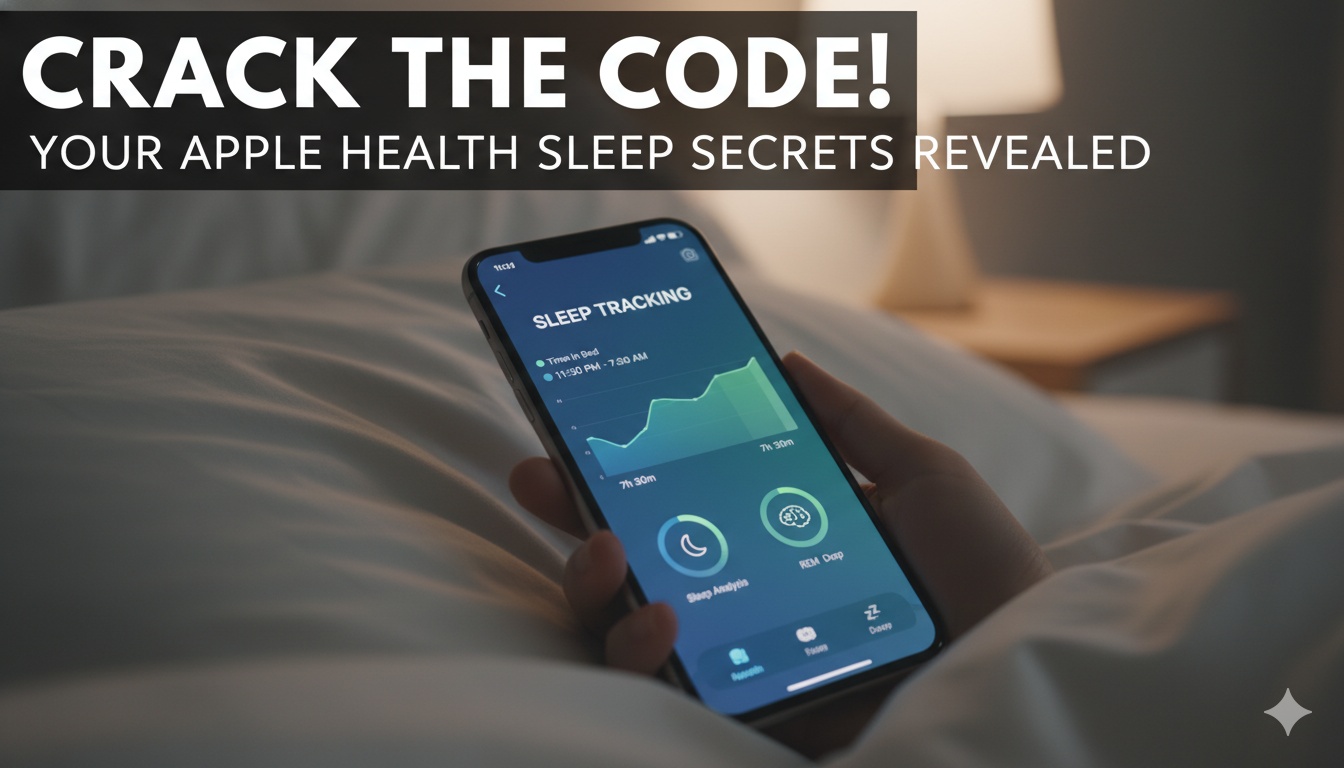
“This guide explains setting up sleep tracking using Apple devices, configuring schedules and focus modes, monitoring stages like REM and deep sleep, accessing detailed metrics including a new sleep score, and analyzing trends for better rest.”
Tracking sleep patterns has become essential for maintaining overall well-being, and Apple Health provides robust tools to monitor and analyze rest without needing third-party apps. The process starts with integrating your iPhone and Apple Watch for accurate data collection, leveraging sensors to capture movements, heart rate, and other vitals during the night.
To begin, ensure your devices are updated to the latest software versions, which include enhanced features like advanced sleep scoring. Open the Health app on your iPhone, navigate to the Browse tab, and select Sleep. If it’s your first time, tap Get Started to set up a sleep goal, such as aiming for seven to eight hours per night. This establishes a baseline for tracking consistency over time.
Next, create a personalized sleep schedule. In the Sleep section, tap Full Schedule and add details for weekdays and weekends separately. Specify bedtime and wake-up times, and enable options like wind-down periods, which dim notifications and activate Sleep Focus mode automatically. Sleep Focus minimizes distractions by silencing alerts across connected devices, ensuring uninterrupted rest. For those with varying routines, multiple schedules can be set, allowing flexibility while still capturing data.
For actual tracking, wear an Apple Watch to bed—models from Series 8 onward offer the most comprehensive metrics. In the Watch app on your iPhone, go to My Watch, select Sleep, and toggle on Track Sleep with Apple Watch. The device uses its accelerometer to detect motion, heart rate sensor for pulse variations, and additional tools like wrist temperature tracking on compatible models to estimate sleep stages: awake, REM, core, and deep. During REM, brain activity increases, supporting memory and learning; core sleep maintains light rest; deep sleep focuses on physical recovery.
Overnight, the watch also monitors respiratory rate, blood oxygen levels, and potential disturbances. A standout feature is the sleep apnea detection, which identifies patterns of breathing interruptions through wrist movements. If consistent signs appear over multiple nights, the Health app notifies you, prompting consultation with a healthcare professional. This integrates seamlessly with other health data, providing a holistic view.
Once data is collected, viewing it is straightforward in the Health app. Under the Sleep category, you’ll see a daily chart displaying total sleep time, broken down by stages in colorful bars—blue for REM, green for core, purple for deep, and gray for awake periods. Scroll down for averages over the past week, month, or year, highlighting trends like average bedtime or wake-up variability. The new sleep score feature assigns a numerical value out of 100 each morning, factoring in duration, consistency, awakenings, and stage distribution. A score above 80 indicates restorative sleep, while lower ones suggest areas for improvement, such as reducing caffeine intake or adjusting room temperature.
For deeper analysis, tap Highlights to see correlations with other metrics. For instance, elevated heart rate during sleep might link to stress levels tracked elsewhere in the app. Users can also compare wrist temperature deviations, which on advanced watches measure subtle changes potentially tied to health cycles or illnesses. If you don’t have a watch, iPhone-only tracking is possible using the device’s microphone and motion sensors, though it’s less precise—enable it in Settings under Sleep, then place the phone on a stable surface near your bed.
Customizing alerts enhances the experience. Set reminders for bedtime preparation, and review sleep hygiene tips integrated into the app, like maintaining a consistent routine or optimizing your environment. Data privacy remains a priority, with all information stored securely on-device or encrypted in iCloud.
To export or share data, select the Sleep section, tap Options, and choose Export PDF for a comprehensive report. This can include graphs showing progress toward goals, useful for discussions with doctors. Integration with HomeKit allows automating lights or thermostats based on sleep schedules, further refining habits.
| Sleep Stage | Description | Typical Duration in a Night | Benefits |
|---|---|---|---|
| Awake | Periods of wakefulness or light tossing | 10-30 minutes total | Natural transitions, minimal impact if brief |
| REM | Rapid eye movement, vivid dreams | 20-25% of total sleep | Enhances creativity, emotional processing |
| Core | Light sleep, easy to wake | 50-60% of total sleep | Stabilizes mood, consolidates facts |
| Deep | Slow-wave sleep, hard to arouse | 15-20% of total sleep | Boosts immune function, muscle repair |
Key points for optimizing tracking include charging your watch sufficiently before bed, as low battery can interrupt data collection. Avoid wearing it too tightly to prevent inaccurate readings. For families, shared devices aren’t ideal—each user should have their own setup. If irregularities appear, like persistent low scores, consider environmental factors such as noise or light pollution.
Advanced users can dive into raw data via the Sources tab, viewing contributions from the watch or iPhone. Third-party apps compatible with HealthKit can augment this, adding features like audio snoring detection, but Apple’s native tools suffice for most. Over time, consistent tracking reveals patterns, such as how exercise affects deep sleep percentages or how travel disrupts consistency.
In cases of jet lag, manually adjust schedules to realign. The app’s insights extend to mental health, linking poor sleep to mood logs if enabled. For those monitoring conditions like insomnia, the detailed breakdowns help identify triggers, empowering proactive changes.
Ultimately, mastering these tools transforms vague notions of tiredness into actionable intelligence, fostering habits that sustain energy and focus throughout the day.
Disclaimer: This article provides general information and tips based on publicly available resources. It is not intended as medical advice, and readers should consult healthcare professionals for personalized guidance. All data and features described may vary by device model and software version.